Microsoft 365 companion apps in Windows 11: what you get
Updated June 22, 2026
When people first heard about new Microsoft 365 shortcut apps in Windows 11, the real question was not “Are there new icons?” but “What do these mini apps actually help me do?”
The useful questions are straightforward:
- What are the new Microsoft 365 companion apps?
- Which apps are included?
- Who gets them and where do they appear?
- Are they full replacements for Word, Outlook, or Teams?
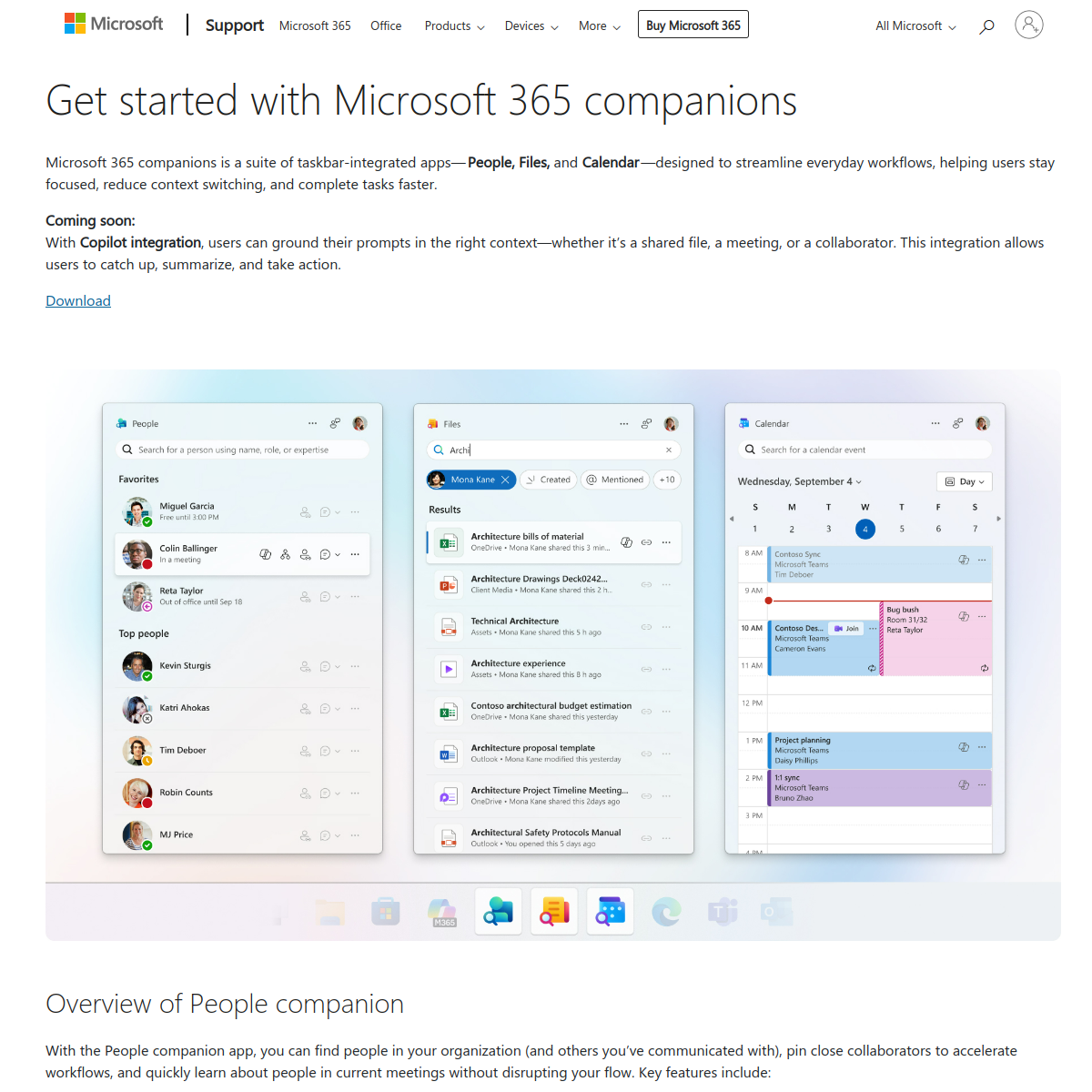
Microsoft’s own overview for companion apps, the end-user support guide, and the public Microsoft 365 roadmap frame the feature clearly: these are lightweight, taskbar-oriented helpers for Windows 11 users with Microsoft 365 apps.
This guide focuses on what you actually get, what you do not get, and where these mini apps fit inside a larger productivity setup.
Terminology first
- Companion apps: lightweight taskbar apps that surface focused information quickly.
- People: a quick view for collaborators and org-related context.
- Files: fast search and access across work files.
- Calendar: a compact view of upcoming schedule information.
What the rollout includes
The feature set Microsoft documents centers on People, Files, and Calendar. These are not full desktop replacements for the main Microsoft 365 applications. They are closer to fast-launch, taskbar-level workflow helpers meant to reduce context switching.
That distinction matters. If you expect full-blown Word, Excel, or Outlook inside tiny taskbar windows, you will be disappointed. If you want faster access to a coworker, a document, or the next meeting, the concept makes more sense.
Who benefits most
The companion model is most useful for people who already live inside Microsoft 365 during the workday. Think knowledge workers, distributed teams, or anyone who moves constantly between files, colleagues, and meetings. The value is less about “more apps” and more about shorter hops between routine actions.
What you still need the full apps for
- deep editing in Word or Excel;
- full mailbox management in Outlook;
- complex document review and formatting;
- broader collaboration flows that need the full suite.
So the best mental model is: companions accelerate entry points; the main apps still handle the heavier work.
One broader workflow lesson
There is also a useful planning angle here for operations teams. Off-the-shelf productivity helpers are great for frequent, narrow actions. But when a business needs role-based dashboards, approvals, data rules, and custom process layers, the conversation shifts from shortcut apps to internal-tool design. That is why some teams compare packaged utilities with an AI web app generator when the workflow starts to outgrow generic interfaces.
Key takeaways
- Microsoft’s Windows 11 rollout is about People, Files, and Calendar companion apps.
- These tools are designed for quick taskbar access, not full app replacement.
- The biggest benefit is lower friction for common work actions.
- Heavy editing and full collaboration still belong in the main Microsoft 365 applications.